
How to Download YouTube Videos: A Complete Guide (2025)
How to Download YouTube Videos
YouTube is one of the most popular platforms for watching videos online, ranging from music videos to tutorials, documentaries, and more. But sometimes, you may want to download a video for offline viewing—especially when traveling, during a poor internet connection, or to save your favorite content.
In this guide, we’ll walk you through safe and legal ways to download YouTube videos on your mobile, PC, or tablet.
Is It Legal to Download YouTube Videos?
Before we jump in, it’s important to understand the legal side. According to YouTube’s Terms of Service:
You are not permitted to download any content unless YouTube has expressly included a “download” or comparable link on the service.
That means downloading videos without permission is against YouTube’s policy, unless:
1• You use YouTube Premium
2• The creator allows it
3• The video has a download option within the app
Note: For educational or personal use, many people use third-party tools—but always use them responsibly.
Method 1: Utilizing YouTube Premium
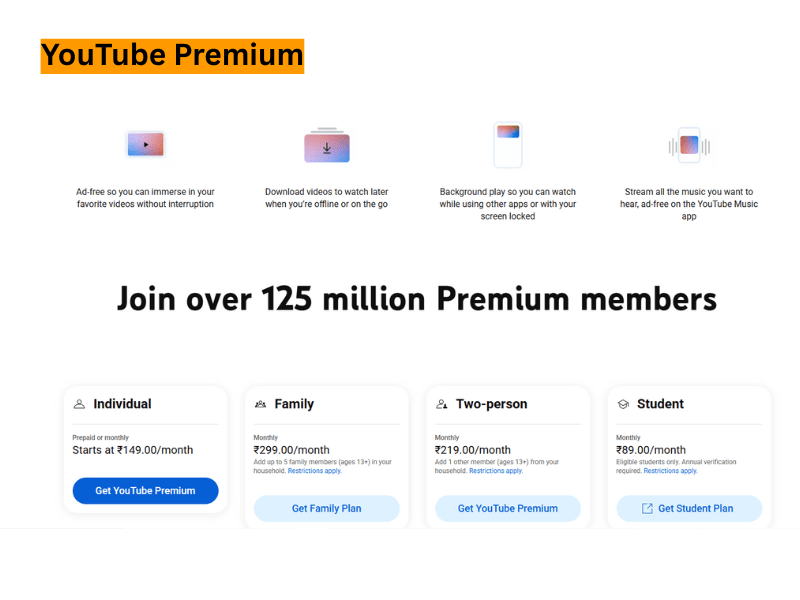
YouTube Premium provides the safest and most authentic way to download videos.
Steps to download:
1: Subscribe to YouTube Premium.
2: Launch the YouTube application.
3: Find the video that you wish to preserve.
4: Click the “Download” option in the menu that appears beneath the video.
5: Select the desired video quality (low, medium, or high).
Your downloaded video will be accessible in Library > Downloads.
Compatible with: Android, iOS
Advantages: Legal, secure, and free of advertisements
Disadvantages: Requires a paid subscription
Method 2: Utilizing Online Video Downloaders (Third-Party)
Numerous websites allow you to input a YouTube link and download the video directly.
Popular tools (2025):
• Y2Mate
Steps for use:
Step 1: Visit YouTube and copy the video link.
Step 2: Access a downloader website (e.g., y2mate.com).
Step 3: Enter the URL in the appropriate area.
Step 4: Select your video format (MP4, 3GP, etc.).
Step 5: Click on Download.
Compatible with: Any browser (PC & mobile)
Advantages: Free, user-friendly
Disadvantages: May contain ads/pop-ups; not officially legal
Method 3: Utilizing Desktop Software
To gain greater control over video quality and to facilitate batch downloads, you may opt to install software on your computer.
Recommended tools:
How to use:
1: Download and install the software.
2: Copy the YouTube URL.
3: Paste it into the software.
4: Select resolution and format.
5: Click Download.
Compatible with: Windows, macOS, Linux
Advantages: High quality, ability to download playlists
Disadvantages: Requires installation
Method 4: Utilizing Mobile Applications (Android Exclusive)
Certain Android applications facilitate the downloading of YouTube videos; however, they are not listed on Google Play due to policy limitations.
Notable APK-based applications:
Instructions for use:
1: To obtain the APK, go to the official website.
2: Install it (ensure “Install from unknown sources” is enabled).
3: Launch the application and search for YouTube videos.
4: Select Download and specify the desired quality.
Compatible with: Android
Advantages: Free, versatile
Disadvantages: Potential malware risk if not sourced from reliable providers
Pingback: How to cancel youtube tv - Fablogpublic